New SolidWorks weekend intake starts 18 Aug — limited seats available.

03-8063 0414

Project Management

Microsoft Project Basics and Intermediate

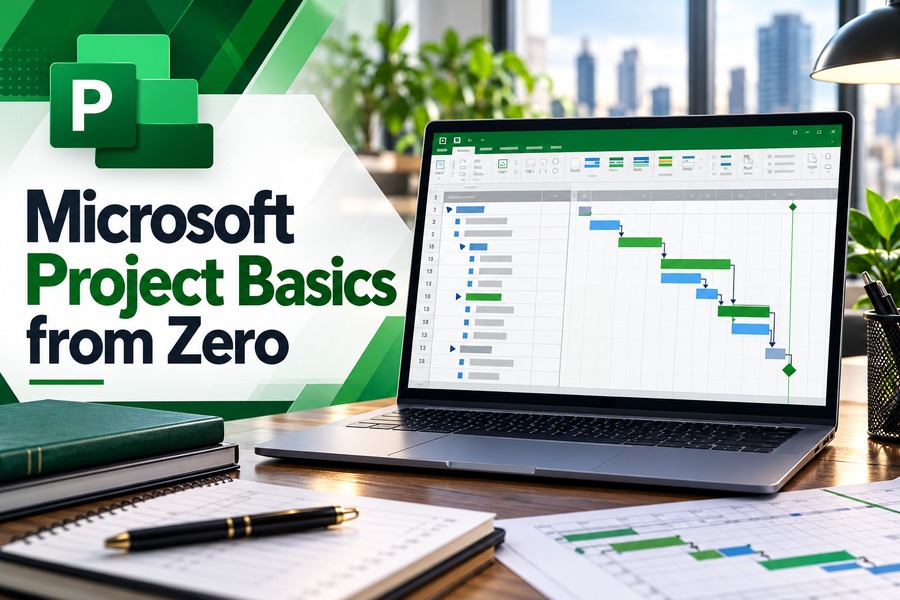
Develop practical project management and scheduling skills with our 3-day, HRD Corp claimable Microsoft Project Basics and Intermediate Training Course at CAD Training Centre. Master Gantt charts, task dependencies, resource allocation, baseline tracking, and WBS codes. Physical, online, and in-house classes available with 20 CIDB CCD Points.

  • Duration 3 Days
  • Level Intermediate
  • Format Face-to-face
  • CCD Points 20

About this course

 This 3-day class is a hands-on introduction to Microsoft Project, designed to provide a strong overview of using the software — focusing on its primary features for planning, creating project schedules and plans, monitoring and controlling the project, and assigning resources. It also provides users with an understanding of more advanced functions of Microsoft Project.

Days 1–2 cover the same ground as Basics From Zero: getting started, creating a project plan, managing tasks and resources, tracking progress with baselines and Gantt charts, advanced scheduling (critical path analysis, resolving resource over-allocations), and reporting. Day 3 goes further into intermediate territory — project set-up end-to-end, understanding and generating graphical reports and S-curves, resource sharing across a common resource pool (including linking to external pools and shared resources), and understanding and managing WBS (Work Breakdown Structure) codes.

Sessions run 9am–5pm at our Puchong training centre.

Related Articles:

https://support.microsoft.com/en-us/project/create-a-project-in-project-desktop

https://support.microsoft.com/en-us/project/create-or-update-a-baseline-or-an-interim-plan-in-project-desktop

https://support.microsoft.com/en-us/project/show-the-critical-path-of-your-project-in-project

https://support.microsoft.com/en-us/project/pick-the-right-report-in-project

https://support.microsoft.com/en-us/project/create-and-share-a-resource-pool-in-project-desktop


Learning Outcomes

  • Understand the Microsoft Project environment and use its features to create, organise and manage project plans and schedules.
  • Develop project schedules by creating tasks, assigning durations, establishing task dependencies and configuring project calendars.
  • Manage project resources, resource calendars, task assignments, resource capacity and associated project costs.
  • Create and maintain project baselines to monitor progress, compare planned and actual performance, and identify schedule deviations.
  • Apply critical path analysis, task constraints and advanced scheduling techniques to manage project timelines and resolve resource overallocations.
  • Generate project reports, graphical reports and S-curves to analyse project progress, planned work and performance.
  • Create and manage common resource pools to share resources across multiple project files.
  • Develop customised Work Breakdown Structure (WBS) codes to organise project tasks and maintain consistent project documentation.

Who is it for

  • Project managers and project coordinators responsible for planning, scheduling, monitoring and reporting project activities.
  • Engineers and technical professionals who need to manage project timelines, task dependencies and resource requirements.
  • Construction and engineering personnel involved in preparing project schedules, tracking progress and generating S-curves.
  • Operations managers and supervisors responsible for managing project resources, workloads and performance.
  • Planning engineers and project controllers who need to monitor project baselines, costs, progress and scheduling changes.
  • Working professionals who want to progress from basic project scheduling to intermediate reporting, resource sharing and WBS management.

Course outline

Module 1

Day 1 –Getting Started with Microsoft Project

  • Exploring the Microsoft Project environment and its basic features
  • Understanding the components of the Microsoft Project interface
  • Displaying an existing project plan in different views
  • Navigating project information using available views
Module 2

Creating a Project Plan

  • Creating a new project plan
  • Assigning a project calendar
  • Adding tasks to a project plan
  • Entering task duration estimates
  • Adding resources to a project plan
Module 3

Managing Tasks in a Project Plan (Part 1)

  • Outlining tasks to organise project activities
  • Linking dependent tasks
  • Setting task constraints and deadlines
  • Adding notes to project tasks
  • Creating recurring tasks
Module 4

Managing Tasks in a Project Plan (Part 2)

  • Understanding elapsed duration
  • Creating and managing milestones
  • Organising project activities using summary tasks
  • Understanding automatic task scheduling
  • Understanding manual task scheduling
Module 5

Managing Resources in a Project Plan

  • Creating resource calendars
  • Assigning resources to project tasks
  • Entering resource costs
  • Understanding and managing resource capacity
Module 6

Day 2 – Plan Duration, Cost & Time

  • Analysing project plan duration
  • Analysing project plan costs
  • Understanding and analysing planned work
  • Reviewing duration, cost and work information within the project plan
Module 7

Track Progress

  • Creating and saving a project baseline
  • Displaying baseline information on a Gantt chart
  • Updating existing project baselines
  • Tracking project plans using dates
  • Tracking task progress using percentage completion
  • Tracking project plans using actual values
Module 8

Advanced Scheduling

  • Understanding task link relationships
  • Applying fixed costs to project activities
  • Managing recurring tasks
  • Performing critical path analysis
  • Identifying resource overallocations
  • Checking and resolving resource overallocation issues
  • Reviewing project plan costs
Module 9

Reporting Project Plan Information

  • Identifying and reporting task slippage
  • Reviewing task costs, Analysing resource costs
  • Generating project reports
  • Using project reporting information to monitor project performance
Module 10

Day 3 – Project Set-Up

  • Setting up a new project
  • Configuring the project calendar
  • Entering project tasks
  • Defining task durations
  • Establishing task dependencies
  • Adding project resources
  • Performing baseline analysis
Module 11

Reporting

  • Understanding graphical reports in Microsoft Project
  • Exploring how graphical reports work
  • Using graphical reports to present project information
Module 12

Visual Reporting and S Curves

  • Introduction to visual reporting in Microsoft Project
  • Understanding the purpose of S-curves in project reporting Generating S-curves
  • Using S-curves to present project information visually
Module 13

Understanding Resource Sharing

  • Creating a common resource pool
  • Linking a project to an external resource pool
  • Linking a new project file to an existing resource pool
  • Assigning resources from the shared resource pool
  • Working with shared resources across project files
  • Checking resource links
  • Understanding and working with cost rate tables
Module 14

Understanding WBS Codes

  • Understanding Work Breakdown Structure (WBS) codes
  • Creating customised WBS codes
  • Altering tasks using custom WBS codes
  • Renumbering existing WBS codes, Editing and managing custom WBS codes

Course format

Choose the delivery mode that fits your team and timeline.

  • 01

    Classroom

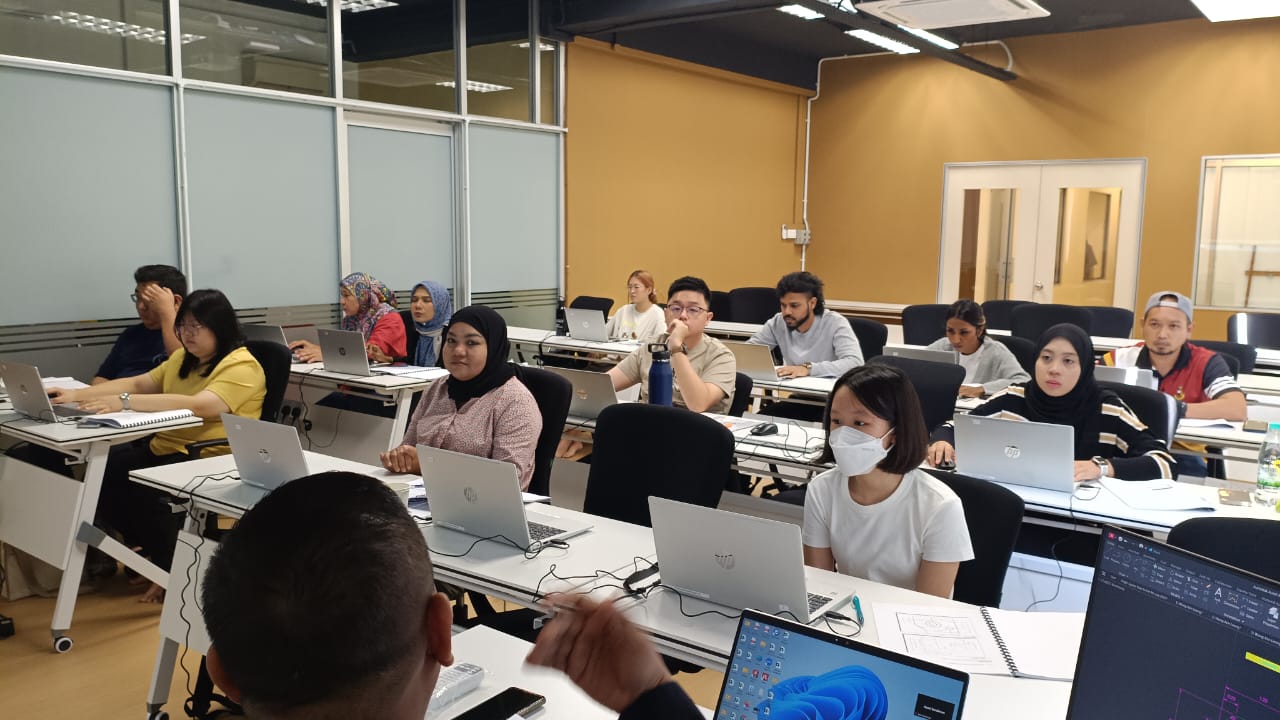
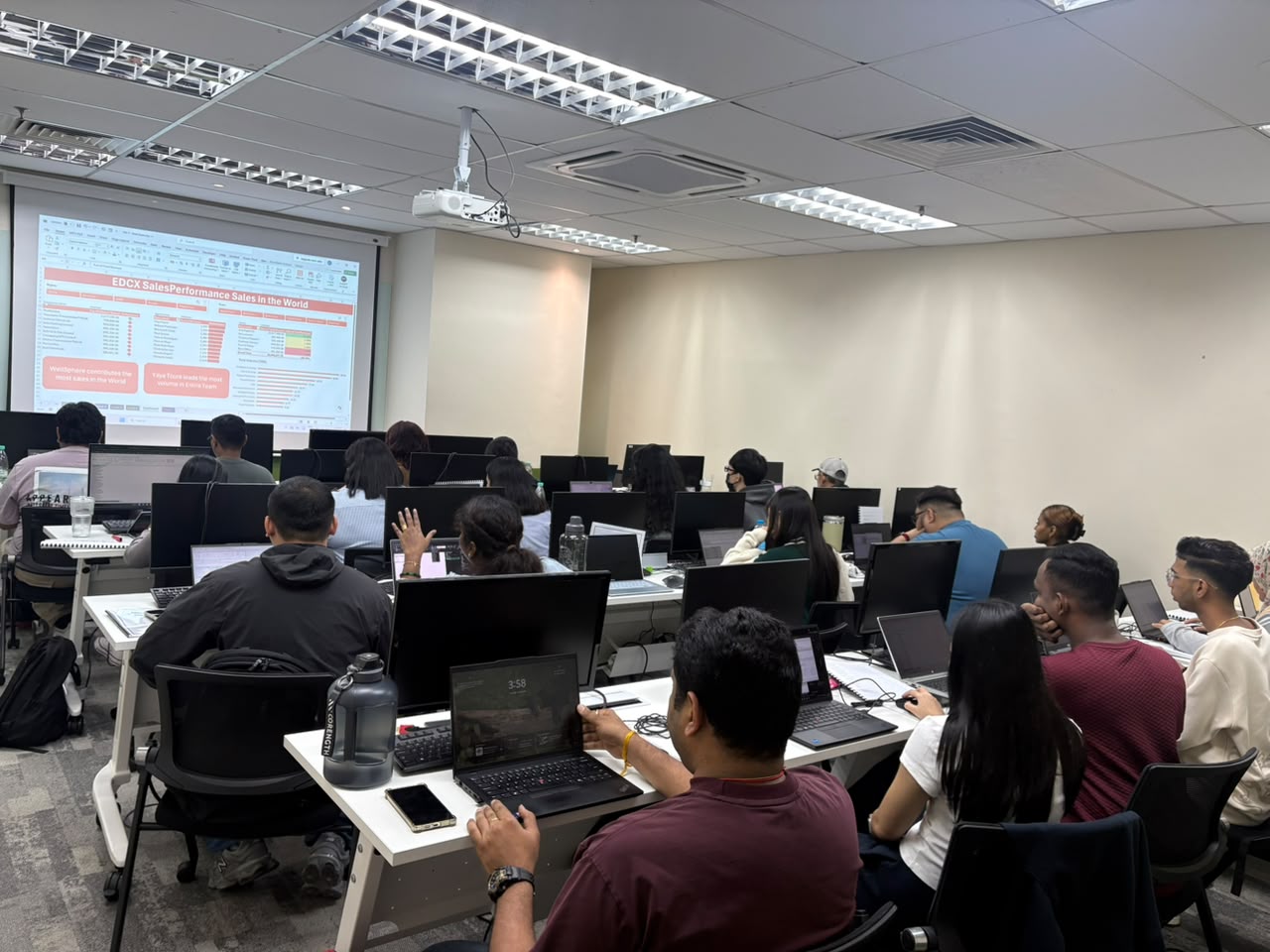
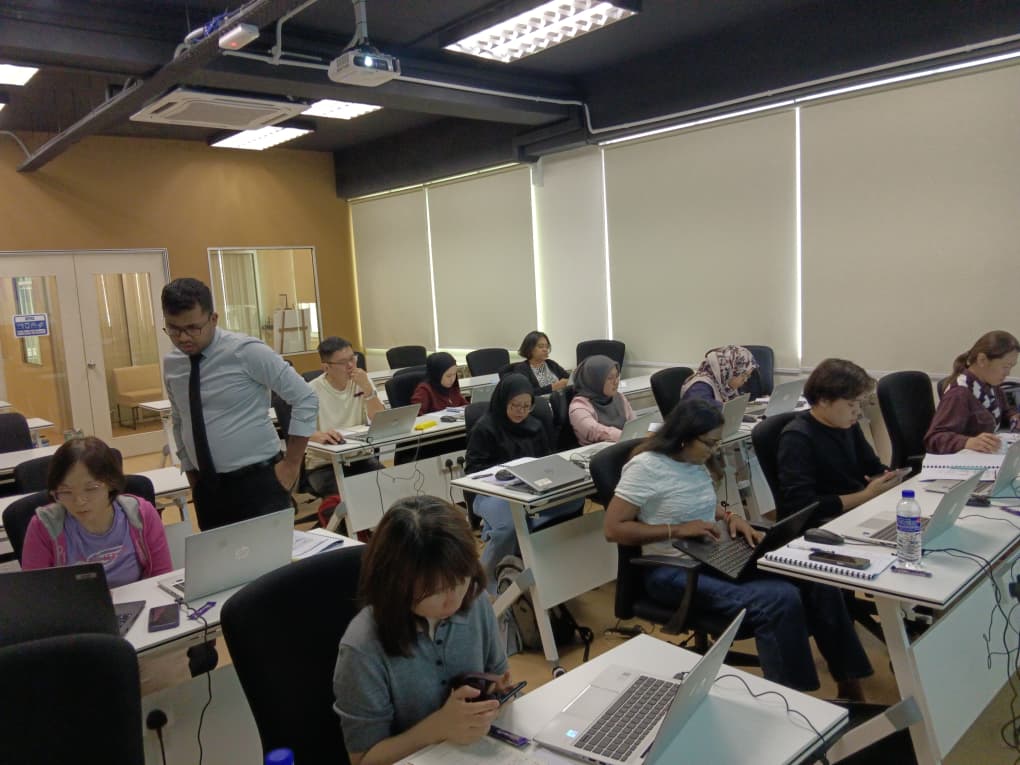
    Instructor-led sessions in our Bandar Puteri labs with guided exercises, live demos, and peer discussion.

  • 02

    Online

    Live virtual delivery with the same syllabus, shared files, and instructor checkpoints — ideal for distributed teams.

  • 03

    In-house

    Private cohorts for your organisation, scheduled around project deadlines with content tailored to your standards.

Upcoming schedule

Public intakes coming up.

  • 17 Nov 2026 - 19 Nov 2026 9:00 AM – 5:00 PM · Face-to-face
  • 15 Dec 2026 - 17 Dec 2026 9:00 AM – 5:00 PM · Online & Face-to-face
  • 18 Jan 2027 - 20 Jan 2027 9:00 AM – 5:00 PM · Face-to-face

Certification & policies

Certificate of attendance

Receive a certificate of attendance upon completing the programme, suitable for HR records and continuous learning portfolios.

Free Repeat Class

Free Repeat Class: if you need another pass at the same public syllabus within 6 months, you may re-attend subject to seat availability.

Materials provided

  • Course workbook / digital notes
  • Exercise files and sample templates
  • Certificate of attendance
  • Post-class support window for clarification questions

Frequently asked questions

01 What is the Microsoft Project Basics and Intermediate course about?

Our Microsoft Project Basics and Intermediate Training Course helps participants develop practical skills in project planning, scheduling, resource management and reporting using Microsoft Project. The programme covers creating project plans, managing task dependencies, allocating resources, tracking progress and generating project reports. Participants will also learn intermediate techniques such as S-curves, graphical reporting, resource sharing and customised WBS codes.

02 Is the Microsoft Project Basics and Intermediate course suitable for beginners?

Yes. This course is suitable for participants who are new to Microsoft Project software. The programme begins with the fundamentals of project planning and task scheduling before progressing to intermediate reporting and resource management techniques. Participants should have a basic understanding of project management concepts and be comfortable using the Windows operating system.

03 What is the difference between Microsoft Project Basics from Zero and Microsoft Project Basics and Intermediate?

Microsoft Project Basics from Zero is a 2-day programme focusing on essential project planning, task scheduling, resource allocation, baseline tracking, critical path analysis and project reporting. Microsoft Project Basics and Intermediate is a 3-day programme that includes all nine foundational modules from the 2-day Basics course, followed by an additional day covering graphical reporting, S-curves, resource sharing and customised Work Breakdown Structure (WBS) codes. The additional third day is suitable for participants who want to develop more detailed project reporting and resource management skills.

04 Do I need to complete Microsoft Project Basics from Zero before joining the 3-day Basics and Intermediate course?

No. The Microsoft Project Basics and Intermediate programme includes the same foundational modules covered in the 2-day Basics from Zero course. Participants can start with the fundamentals of Microsoft Project before progressing to intermediate techniques such as S-curves, visual reporting and resource sharing. A general understanding of project management concepts and basic Windows operating system skills is recommended.

05 What are S-curves, and will I learn how to create them in Microsoft Project?

Yes. The third day of training includes a dedicated module on visual reporting and generating S-curves. An S-curve is a graphical representation commonly used to visualise cumulative project information over time, such as planned work, progress or costs. It can help project teams understand performance trends and compare project information. Participants will be introduced to generating S-curves as part of their Microsoft Project reporting activities.

06 What will I learn about resource sharing and WBS codes?

You will learn how to create common resource pools, link project files to shared resources, assign resources from a pool and manage cost rate tables. The course also introduces Work Breakdown Structure (WBS) codes, including how to create customised codes, modify task codes, renumber WBS codes and maintain consistent project structures. These techniques help organise project information and support resource management across multiple projects.

07 How long does the Microsoft Project Basics and Intermediate course take?

The course takes three days, with training sessions running from 9:00 AM to 5:00 PM . Day 1 focuses on project planning, task scheduling and resource management. Day 2 covers baseline tracking, critical path analysis, cost monitoring and project reporting. Day 3 introduces graphical reports, S-curves, resource sharing and WBS codes. The training uses 70% practical hands-on exercises and 30% theory.

08 Do I need to bring my own laptop or purchase Microsoft Project software?

No. CAD Training Centre provides laptops with Microsoft Project installed for participants attending physical classes at our Puchong centre. You do not need to purchase a separate software licence for classroom use. You may bring your own laptop if preferred.

09 Will I receive a certificate after completing the Microsoft Project Basics and Intermediate course?

Yes. Participants receive a certificate of Attendance upon completing the Microsoft Project Basics and Intermediate Training Course.

10 What language is the Microsoft Project Basics and Intermediate course conducted in?

The training is conducted bilingually in English and Bahasa Melayu.

11 Is the Microsoft Project Basics and Intermediate course HRD Corp claimable and eligible for CIDB CCD points?

Yes. Our Microsoft Project Basics and Intermediate Training Course is HRD Corp claimable, subject to the applicable eligibility and approval requirements. The course is also advertised with 20 CIDB CCD points for eligible construction-industry participants, subject to CIDB requirements.

12 Is there a surau (prayer room) available at CAD Training Centre?

Yes, we have a surau available at our training centre in Puchong. Muslim participants can use the prayer room during breaks throughout the training day.

13 Can I attend Microsoft Project Basics and Intermediate training online instead of in a classroom?

Classroom training means physical attendance in Puchong with face-to-face guidance and co-learning with other participants. Online training runs live via Zoom with hands-on, screen-shared exercises, better if you're outside the Klang Valley or want to save on travel time.

14 Can I repeat the Microsoft Project Basics and Intermediate course if I need more practice?

Yes, free repeat classes are offered , no questions asked, if you need a refresher.
Next step

Register your interest

Share a few details and we will confirm seats, HRD Corp claimability, and the best public or in-house option for this course.

Training type